How to Search SuperScan Results for Files and Folders. Find deleted Files
If, as a result of your SuperScan you find a large number of partitions, you may want to use a filtered search to help you locate specific files or folders. There are options in the search dialog box that allow you to make the search go faster. For example, you may want to restrict the search so that only deleted files and folders appear in the results. By choosing a smaller group of files to search for, you may be able to locate a specific file or folder faster.
To search for files or folders:
- To open the Advanced Search dialog box, select the SuperScan virtual folder and do one of the following:
- Click Search in the toolbar.
- Right-click the folder and choose Search from the context menu.
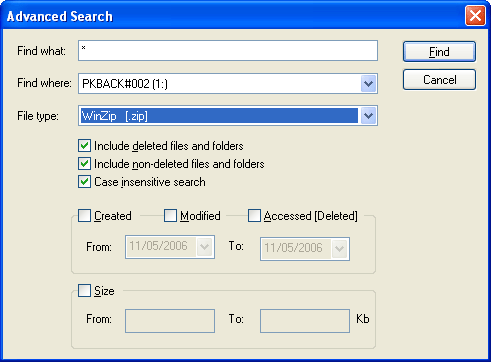
- To find a file by name, enter the file name in the Find what field. Advanced Search will search for files that match the name. You may enter part of the file name and use an asterisk (*) to represent the rest of the name.
- To find a file in a specified location, choose a location in the Find where drop-down list.
- To search by file type, choose a file type from the File type drop-down list.
- To exclude deleted files and folders from the search results, clear the Include deleted files and folders check box.
- To exclude existing files and folders from the search results, clear the Include non-deleted files and folder check box.
- To use case sensitive search, clear the Case insensitive search check box.
- To search for a file based on a date, select the Created, Modified or Accessed [Deleted] check boxes and enter a From and To date range.
- To search for a file based on the size of the file, select the Size check box and enter a From and To size range.
- Click Find.
Advanced Search creates a new virtual folder with the name "Search" and a date and time stamp. The contents of this folder are displayed in the right panel. You may treat this new folder and its contents the same way that you treat other device nodes in the list. You may follow the same steps to scan the folder, then search for files and folders to be recovered.
Important:
When you are using a search pattern in Advanced Search, it is the same pattern recognized when searching in Microsoft Windows.
The asterisk symbol (*) in the pattern means that at this place can be zero or any number of any symbols.
Examples:
- * - All files on the drive or in the folder
- *.TXT - All files with "TXT" extension
- My*.* - All files starting with "My"
- MyFile.txt - Search for the file named "MyFile.txt"

