In some cases, the first indication of a problem with hard drive data is the refusal of the machine to perform a bootstrap startup. For a machine to be able to start properly, the following conditions must apply:
If the above is in place, executable code in the MBR selects an active partition and passes control there, so it can start loading the standard files (COMMAND.COM, NTLDR, ... ) depending on the file system type on that partition.
If these files are missing or corrupted it will be impossible for the OS to boot - if you have ever seen the famous "NTLDR is missing ..." error, you understand the situation.
When using Active@ File Recovery, the recovery software accesses the damaged drive at a low level, bypassing the standard system boot process (this is the same as if you instructed the computer to boot from another hard drive). Once the computer is running in this recovery environment, it will enable you to see all the files and directories on the drive and allow you to copy data to a safe place on another drive.
A more serious situation exists if your computer will start and cannot see a drive partition or physical drive (see Note below). For the partition or physical drive to be visible to the Operating System the following conditions must apply:
If the above conditions are true, the OS can read the partition or physical drive parameters and display the drive in the list of the available drives.
If the file system is damaged (Root, FAT area on FAT12/FAT16/FAT32, or system MFT records on NTFS) the drive's content might not be displayed and the errors "MFT is corrupted", or "Drive is invalid" might appear. ... If this is the case, it is less likely that you will be able to restore your data. Do not despair though, as there may be some methods or tips to display some of the residual entries that are still safe, allowing you to recover your data to another location.
Active@ File Recovery and Active@ UNERASER for DOS software both implement this approach.
If your computer has two operating systems and you choose to start in Windows 95/98 or ME, these operating systems cannot see partitions that are formatted for NTFS. This is normal operation for these operating systems. To view NTFS partitions, you must be in a Windows NT/2000/XP environment.
These topics relate to the recovery of partitions which apply to any file system:
For these topics the following disk layout will be used:
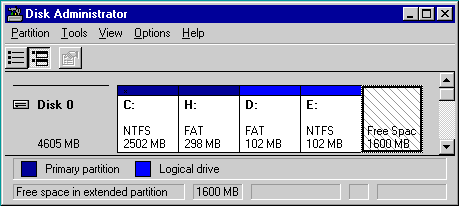
The figure shows a system with two primary partitions (C:(NTFS) and H:(FAT)) and one extended partition having two logical drives (D: (FAT) and E:(NTFS))
This document is available in PDF format,
which requires Adobe® Acrobat® Reader
(Free download):

